
Help centre
Get the most out of librarydojo.
On this page
Getting started
1. Get your licence and create an account
- Purchase a licence for librarydojo. You can choose from monthly, yearly or lifetime options.
- You’ll receive your licence via email. Keep this safe, you’ll need it in a moment.
- Head to the librarydojo app and then create your account and log in.
- When prompted, enter your licence key and the email address used to buy it.
- Your purchase email can be different from the email you use to log in to librarydojo.
Your librarydojo licence is now activated and you can use the app.
2. Export your Rekordbox collection
librarydojo works from a rekordbox XML export.
- Open rekordbox.
- Go to File → Export Collection in XML format.
- Save the
.xmlfile somewhere you can find it. - In librarydojo, drag the file into the import area or choose it from your computer.
librarydojo supports Rekordbox 6 and 7. Your original rekordbox collection is never changed.
3. Choose what “ready” means for you
During onboarding, choose a starting standard for your working library:
- Essentials for a lighter baseline.
- Advanced for a more complete prep workflow.
- Bulletproof for a stricter standard.
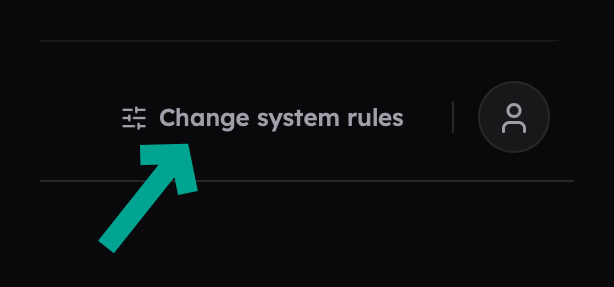
You can change these rules at any time with Change system rules in the top-right of the app. Rules can cover cue points, metadata, MyTags, audio quality and playlist membership.
4. Start your first review
After your import, open My Library in librarydojo. You will see a recommended next action based on your collection.
Start with a small batch:
- Open the focus review.
- Review the tracks and why they appear there.
- Choose Start review to create a focused batch.
- Download the playlist and import it in rekordbox.
- Make your changes in rekordbox: add cues or metadata, place tracks in playlists, revisit them, or decide they no longer belong in your active library.
- Export and upload a fresh XML to librarydojo when you’re finished.
librarydojo then checks what changed, so you can see the result of the work rather than guessing.
My Library
My Library is the centre of librarydojo. It organises your collection into four Lenses that help you decide what to trust, prepare, revisit and reduce.
Trusted
Question it answers: What can I rely on?
Trusted tracks meet your Ready Standard and have at least three recorded plays. Use this Lens to keep your dependable, proven tracks visible when you are building a set or planning a gig.
Needs Prep
Question it answers: What is closest to ready?
These tracks fail one or more of your active Ready Standard rules. Open a track to see the missing preparation signals, then review a small batch in rekordbox.
If this Lens is not showing what you expect, check your system rules first: changing the rules changes what counts as ready.
Forgotten
Question it answers: What deserves another chance?
These are older tracks that meet your Ready Standard but have fewer than three recorded plays. They are worth a deliberate listen: promote them back into rotation, add them to a playlist, or decide they no longer need space in your working library.
Review
Question it answers: What should still stay?
These are older, unplayed local tracks that do not meet your Ready Standard. Review helps you make an intentional keep, fix, revisit or move-aside decision. It never deletes tracks automatically.
Why a track may not appear in a Lens
A Lens reflects your latest XML export and your current Ready Standard. Re-export and upload your collection after making changes in Rekordbox. Also note that streaming references are excluded from Lenses and exported playlists.
Focus reviews
Focus turns a Lens or recommendation into a manageable batch of tracks.
Use it when you want a clear, contained task instead of trying to fix your whole library at once. A Focus review lets you download the selected batch as a playlist, work through it in rekordbox, then upload a new XML to verify the improvement.
A Focus review does not write to rekordbox or alter your music files. You make the changes; librarydojo checks the result.
My Gigs
Use My Gigs to create a working set for an upcoming performance from an existing playlist.
For each gig, librarydojo can highlight readiness gaps, duplicate and quality concerns, and useful recommendations for the selected set. Start a Focus review from a recommendation when you want to prepare the most important tracks first.
You can keep up to five gigs in librarydojo. Removing a gig removes it from librarydojo only; it does not delete the playlist in rekordbox.
Track previews
Track previews are a beta feature for local music files.
Connect your music folder from the player at the bottom of the app. librarydojo looks for matching files so you can preview them while reviewing your library.
- Your files are not uploaded, edited or moved.
- Only local files can be matched and previewed.
- Streaming tracks cannot be previewed.
- If a track cannot be matched confidently, it will remain unavailable for preview.
You can disconnect the folder at any time from Track preview options. You may need to reconnect the folder each time you return to the app.
Profile & account
View your account
Click the Profile icon in the top-right of the app to see your current plan, licence status and activations.
Update payment details
Open Profile, then select Manage subscription. Use the purchase details from when you bought your licence; these can differ from your librarydojo login details.
You can also access your billing information directly here using the details you made the purchase with (this is different your librarydojo login).
Cancelling a subscription
You can cancel your subscription at any time through the ‘My profile’ page on the app and then clicking ‘Manage my subscription’.
Alternatively you can access your billing directly here using the details you made the purchase with (this is different your librarydojo login).
Activation limit reached
If you reach your activation limit, check the Activations section in Profile. A licence key can only be used with one librarydojo account.
Delete local library data
Profile also lets you delete your local library data. This removes the imported analysis from the current browser, so you will need to upload your XML again. It does not cancel your plan or delete your account settings.
Troubleshooting
License Activation Failed
If your license key isn’t working:
- Check the email: You must use the email address used at purchase. This may be different from your librarydojo login email.
- Check Format: Keys are usually in the format
XXXX-XXXX-XXXX-XXXX.
“MyTags” are missing
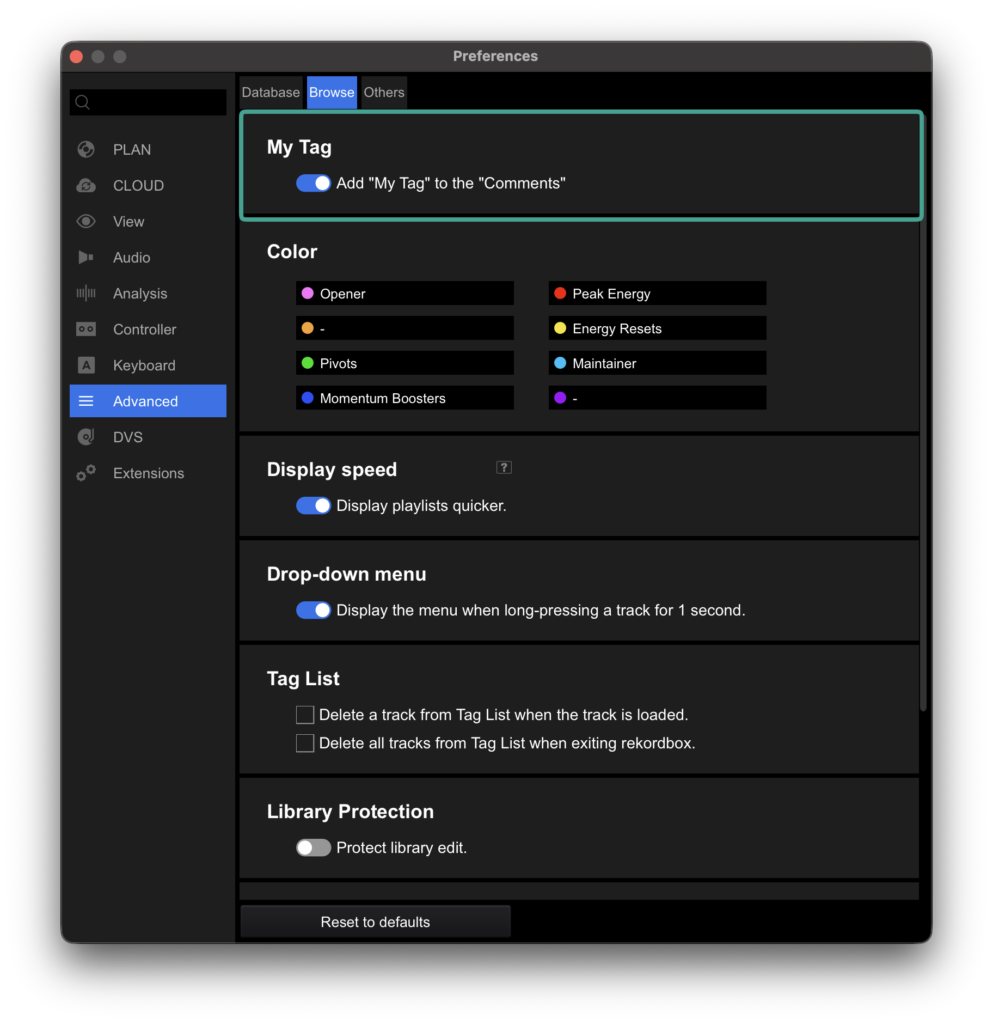
By default, rekordbox does not include MyTags in the XML export file.
The Fix:
- In Rekordbox, go to Preferences > Advanced > Browse.
- Check the box that says “Add ‘MyTag’ to the ‘Comments’”.
- Re-export your XML. librarydojo reads the Comments field to find your tags.
I can’t download a playlist of Streaming tracks
rekordbox (and most DJ software) does not support importing .m3u8 playlist files that reference streaming URLs (Tidal/Beatport/Spotify etc).
We automatically filter streaming tracks out of downloadable playlists to ensure the file actually works when you import it back into rekordbox.
Import is stuck / frozen
Ensure the XML is valid
Refresh the page.
Try clearing the database from your profile page